Do We Actually Need Apple's Touchscreen MacBook Pro?
Explore Apple's first touchscreen MacBook expected features, potential benefits, and everyday uses to decide whether it is worth upgrading or if a traditional MacBook is still enough.
Do We Need a Touchscreen MacBook Pro?
For years, the phrase touchscreens on laptops are “ergonomically terrible,” anchored Apple’s product design approach. Though Windows makers jumped into touch screens, 2-in-1 convertibles, and stylus integration, Apple maintained that MacBook should be for trackpads and keyboards and iPads for touch.
However, Apple officially crossed the divide with the introduction of its new touchscreen macOS optimised MacBook Pro with direct touch. This creates a question for professionals, creatives, and tech enthusiasts: do we really need the MacBook Pro with PROLED XDR or is it just another expensive hardware to fulfill your wants?
Why Apple Finally Brings Touchscreens
Now that we’ve moved on to Apple Silicon, it’s never been more apparent that the line between iOS, iPadOS, and macOS is nearly non-existent. There are now many iPhone and iPad apps that can be used natively on the macOS, but dragging a mouse or trackpad to interact with apps that use swipes or taps is clunky. Adding direct support for touch completes the usability experience.
Getting people to transition their work or daily habits to Apple’s first touchscreen MacBook from their iPhones and/or iPads will not be a natural thing for users to get used to. Apple has incorporated high-end display specs to refresh PROLED XDR, with structural impact-resistant, mechanical anti-shake hinges and oleophobic coating to avoid fingerprint smudges. Instead of backtracking to a classic design, it has kept the laptop body while adding touch capabilities.
Touchscreen vs Trackpad for More Practicality
One of the big ergonomic complaints about touchscreen laptops is fatigue or making an extended reaching movement across the keyboard. The MacBook Pro with PROLED XDR isn’t about replacing the keyboard or trackpad.
The Force Touch trackpad is still the best for fine cursor control, navigating around the UI and text selection, but direct touch can be better for:
Scrubbing & Timeline Control: Videographer and audio editors can scrub through timelines in Final Cut Pro or Logic Pro while also handling quick shortcuts on the keyboard.
Canvas Movement: Easily zoom in and out across Figma or Illustrator canvases without changing your trackpad mode.
Rapid Form & Menu Navigation: Single tap on a system confirmation or a click of a pop-up menu is quicker than dragging.
The touch interface is best as an acceleration layer. You’ll still be using the trackpad for detailed desktop navigation, but the touchscreen replaces trackpad or mouse access to provide instant low-precision physical movements. You can equally alternate between trackpad navigation, keystrokes, and a tap on the screen to distribute physical micro-movements across different muscles.
New Opportunity for Digital Creators
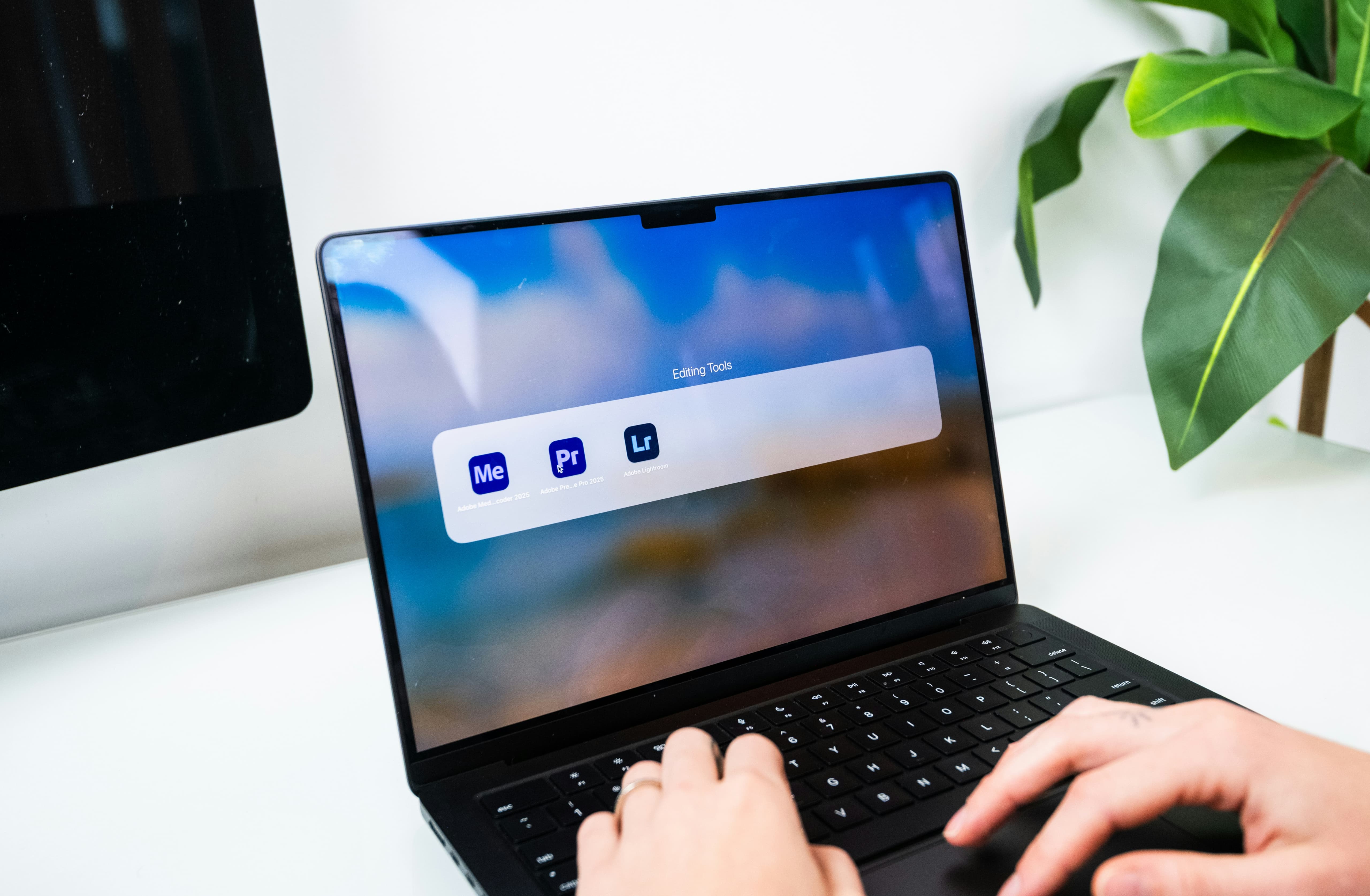
Touch input provides a flexible workflow for creative professionals in Singapore, including photo retouchers, video editors, digital illustrators, and UI and UX designers. Imagine editing intricate and high resolution photos with Adobe Lightroom or color grading with DaVinci Resolve. The trackpad enables you to make small moves on the sliders. The screen enables you to directly click, zoom in and out, and drag adjustment masks around your image.
However, it’s convenient to have Apple’s touchscreen MacBook Pro instead, which also works well if you often work on-the-go edits, test apps, and markup media across your laptop display without using another device.
Is a Touchscreen MacBook Worth Paying More For?
Like all premium hardware revisions, there’s a premium price for the MacBook Pro with PROLED XDR Display. Upgrading outright requires significant upfront investment, a decision that will cost you much more than you consider in higher unified configurations of money and storage.
If you mostly edit words, data entry, and visit websites all day, then the touch interface doesn’t justify a purchase. However, if you create visual assets, edit media, or run mobile apps directly on macOS, the efficiency gains can be substantial.
If you’re not sure if the MacBook Pro with PROLED XDR will integrate seamlessly into your daily life with ease, purchasing outright isn’t your only choice. Subscription options lets you experience flagship technology with an affordable price.
Through Cinch, you can access the latest premium laptops, phones, and tablets, with clear monthly costs and no hidden charges. When you subscribe, you avoid upfront costs and the impact of rapid depreciation. Protection plans customized to your subscription can be added:
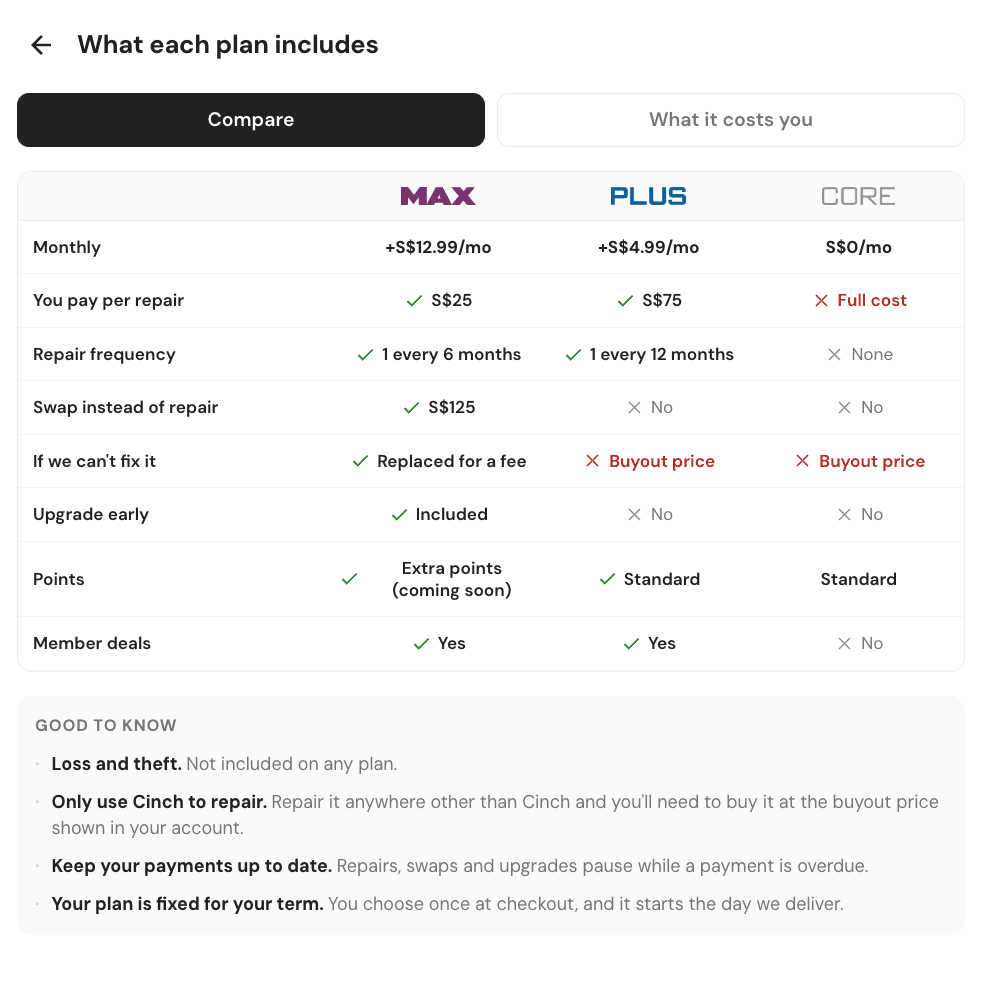
Cinch Plus: With a damage waiver at an affordable fixed price at S$75, full collection and exclusive member prices.
Cinch Max: Your damage waiver would be at S$25 (every 6 months), swap devices for S$125 so you’re never without a work device, and early upgrade at the last 6 months of your term without early termination fees.
Whether testing Apple's first touchscreen MacBook for a work project or keeping up with the latest tech every year, with a subscription via Cinch you’re in good hands with your hardware lifecycle.
Apple’s Touchscreen MacBook Pro FAQs
Will the touchscreen MacBook Pro support Apple Pencil? Apple has designed touch functionality primarily for finger navigation, gestures, and multi-touch interactions within macOS. Dedicated stylus drawing and pressure-sensitive illustration remain optimized for the iPad paired with Apple Pencil.
How does subscribing with Cinch work compared to buying upfront? When you subscribe through Cinch, you pay a manageable monthly fee without heavy credit card lock-ins, interest charges, or large upfront down payments. Your monthly payments build towards flexible buyout options if you decide to keep the device, or you can simply return or upgrade to a newer model at the end of your term.
Does Cinch protect my device against accidental screen cracks or liquid damage? Yes. When you choose a service plan like Cinch Plus or Cinch Max, your device is covered by an integrated damage waiver. Under Cinch Plus, repairs are capped at a flat S$75 fee per year. With Cinch Max, repair fees drop to just S%25, and you gain access to immediate device swaps if you cannot afford downtime.
Can I turn off the touchscreen on a MacBook Pro if I do not need it? Yes, macOS includes simple toggle controls within System Settings allowing users to disable touch input entirely or customize touch gestures to prevent accidental screen taps during intensive typing sessions.


